Wireless charging
MagSafe vs Qi2 vs Qi: which wireless charger for your iPhone?
MagSafe, Qi2, Qi2 25W and plain Qi explained. Covers which iPhones support each, how fast they charge, the power adapter you need, and what works through a case.
Checked against sources 15 October 2026
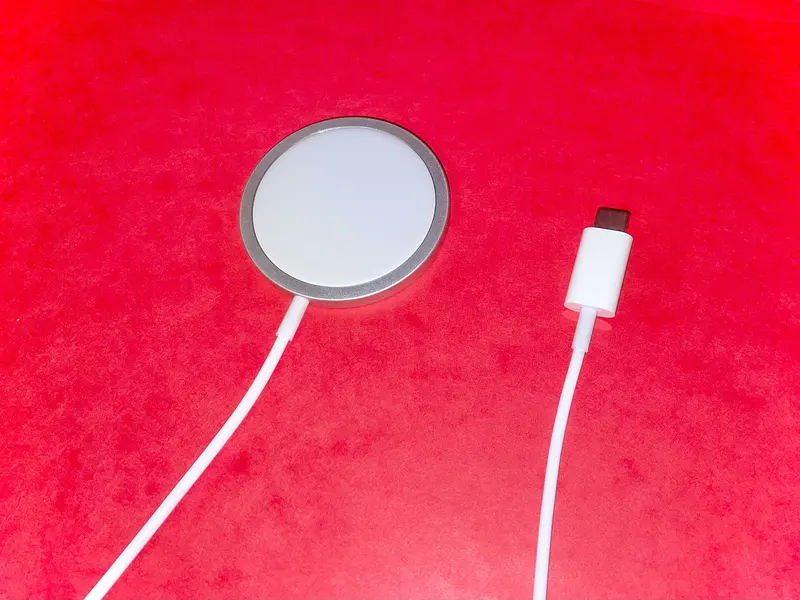
Three names, one idea
All three charge your iPhone through the back with no cable plugged into the phone. The differences are magnets, speed and who owns the standard.
| Qi | Qi2 | Qi2 25W | MagSafe (Apple) | |
|---|---|---|---|---|
| Who makes the standard | Wireless Power Consortium (WPC) | WPC | WPC | Apple |
| Magnets to line it up | No | Yes (“Magnetic Power Profile”) | Yes | Yes |
| Top speed on iPhone | Up to 7.5W in many cases (Apple) | 15W | 25W on iPhones Apple rates at 25W | Up to 25W on the newest iPhones |
| iPhones | iPhone 8 and later | iPhone 12 and later (Apple’s compare page), except iPhone 16e | iPhone 16 and later models Apple rates above 15W | iPhone 12 and later, except iPhone 16e |
Apple doesn’t use the name “Qi2.2”. Its spec pages say “Qi2 wireless charging up to 25W”. The WPC’s name for that version is Qi2 25W (technically Qi v2.2.1, launched July 2025). The WPC says Qi2 25W can take a phone “from 0 to 50% in about 30 minutes”.
How fast is my iPhone wirelessly?
From Apple’s MagSafe Charger article and spec pages (your device page shows your model):
- 25W: iPhone 18 Pro, 18 Pro Max, 17, 17 Pro, 17 Pro Max, 16 Plus, 16 Pro Max, and iPhone Duo (per its spec page)
- 22.5W: iPhone 16 and 16 Pro
- 20W: iPhone Air
- 15W: iPhone 17e, and iPhone 15 and earlier MagSafe models
- 12W: iPhone 12 mini and 13 mini
- Qi speeds only (no magnets): iPhone 16e, iPhone 11 models, iPhone SE and older Qi iPhones
Those top speeds need the right power adapter behind the charger. Apple recommends “a recommended 30W or greater” USB-C adapter for 25W MagSafe charging, and 20W or more for the 15W tier. The MagSafe Charger still works on as little as 12W, but charges more slowly. The WPC says a 25W station “needs a 30–40W or larger power adapter to reach full speed”.
Things that slow wireless charging down
- Wired accessories plugged in: if you plug in USB-C headphones while charging wirelessly, Apple limits charging. It’s 16W on iPhone 18 Pro, 10W on 17 Pro and 7.5W on the iPhone 16 family.
- Thick, metal or battery cases can slow or stop wireless charging. Apple suggests removing them if charging is slow.
- Cards and key fobs: don’t put them between the phone and charger. Apple warns it can damage magnetic strips and RFID chips.
- Order matters: Apple says to plug the MagSafe Charger into power before putting the iPhone on it.
- If a cable and MagSafe are both connected, the iPhone charges through the cable.
Cases
Apple’s MagSafe cases have magnets built in. Apple says you can leave the case on and use a MagSafe charger, or a “Qi2 25W or Qi-certified charger”. For third-party cases, look for the maker saying “MagSafe compatible” or “Qi2”. Without magnets in the case, a magnetic charger won’t hold.
AirPods and Apple Watch
MagSafe and Wireless Charging Cases for AirPods charge on Qi mats and MagSafe chargers. Put the case down with the status light facing up and the lid closed. Apple says the AirPods Pro 2 and Pro 3 MagSafe cases, and the AirPods 4 (ANC) and AirPods 5 Wireless Charging Cases, also charge on an Apple Watch charger. Apple Watch itself needs its own magnetic charger. A MagSafe pad won’t charge it. That’s why 3-in-1 stands have a separate watch puck.
Buying tips
- “Qi2 certified” is the phrase to look for. The WPC says certified products appear in its public database. For Qi2 25W, the database lists Version 2.2.1, power profile MPP25 and 25.0W load power.
- Check whether a power adapter is included and what wattage the charger maker asks for.
- On 3-in-1 stands, check the watch puck is a fast charger if your Apple Watch supports fast charging.
Browse MagSafe & Qi2 chargers. Pick your iPhone in the filter to hide anything that won’t work.
Sources checked 15 October 2026
- Apple Support – How to use your MagSafe Charger with iPhone support.apple.com
- Apple Support – How to charge your iPhone wirelessly support.apple.com
- Apple Support – About iPhone charge speeds support.apple.com
- Apple Support – Fast charge your iPhone support.apple.com
- Apple Support – MagSafe chargers and battery packs for iPhone support.apple.com
- Apple Support – Charge your AirPods support.apple.com
- Apple (UK) – MagSafe Charger (1m) apple.com
- Wireless Power Consortium – Qi wireless charging wirelesspowerconsortium.com
- Wireless Power Consortium – Qi2 25W news release (PDF) wirelesspowerconsortium.com
- Wireless Power Consortium – Best Qi2 25W charging stations (certification checks) wirelesspowerconsortium.com