Mac set-ups
Choosing a USB-C hub or dock for your Mac
Hub, dock or single adapter? How to match one to your Mac’s ports, why the number of external displays depends on your Mac’s chip and not the dock, and what to check for laptop charging.
Checked against sources 15 October 2026
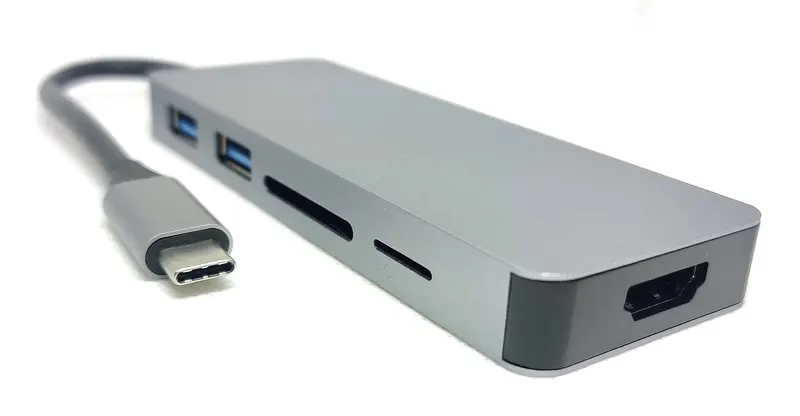
Hub, dock or adapter?
- Single adapter: one job, such as USB-C to HDMI or an SD card reader. Small and cheap.
- USB-C hub: several ports (USB-A, HDMI, SD, Ethernet) through one USB-C plug. Everything plugged in shares the hub’s one link to the Mac, so check the data speed the maker states (the hubs we list are 5Gb/s or 10Gb/s).
- Thunderbolt dock: more ports and much more bandwidth (40Gb/s with Thunderbolt 4, 80Gb/s with Thunderbolt 5), usually with its own power supply to charge the laptop over the same cable.
Step 1: know your ports
Apple’s port guide lists which Macs have Thunderbolt 5, Thunderbolt 4 or Thunderbolt / USB 4. Each Mac’s device page here shows its ports as Apple lists them. In short:
- Thunderbolt 5: MacBook Pro with Pro or Max chips (2024 and later), Mac mini with a Pro chip (2024 and later), Mac Studio (2025 and later).
- Thunderbolt 4: MacBook Air (2025 and later), iMac (2024), MacBook Pro M4/M5, Mac mini (M4/M6) and others.
- Thunderbolt / USB 4: earlier Apple-silicon MacBook Air and 13-inch MacBook Pro, and early iMac and Mac mini models.
- USB-C only (no Thunderbolt): MacBook Neo has one USB 3 (10Gb/s, with DisplayPort) and one USB 2 USB-C port. Apple notes devices behind a hub “may not respond” on it, and speed depends on which port you use.
Step 2: know your display limit
Apple: “The number of displays you can use at the same time depends on your Mac model and the resolution and refresh rate of each display.” Examples from Apple’s support pages:
| Mac | External displays (Apple) |
|---|---|
| MacBook Neo | 1 (up to 4K at 60Hz) |
| MacBook Air (M4, M5) | Up to 2, alongside the built-in display |
| MacBook Air / MacBook Pro with M3 | 2, but only with the lid closed |
| MacBook Pro M5 | Up to 2 |
| MacBook Pro M5 Pro | Up to 3 |
| MacBook Pro M5 Max | Up to 4 |
A dock with three video ports won’t get past those limits. Apple says hubs and daisy-chaining can put two displays on one Thunderbolt port, but they don’t raise the maximum. If a display on a dock will only mirror your screen, Apple’s tip is to plug it straight into the Mac. When connecting more than one display, connect the highest-resolution one first.
DisplayLink: some docks use DisplayLink, a Synaptics technology that sends video as data. On macOS it needs Synaptics’ DisplayLink Manager app. Synaptics says it gets around native display limits. That’s the maker’s claim, and Apple doesn’t mention DisplayLink in the pages we checked.
Step 3: charging through the dock
Many hubs and docks pass power through to the laptop. Check the watts delivered to the laptop, which is usually lower than the hub’s input. Compare it with the figure Apple quotes for your Mac in our charging guide. Intel says Thunderbolt 4 supports laptop charging up to 100W and Thunderbolt 5 up to 140W, with 140–240W on some devices.
Desktop Macs
On Mac mini (2024 and later), Apple says to connect displays to the ports on the back with the Thunderbolt symbol. The front USB-C ports are for other devices. iMac, Mac mini and Mac Studio don’t need power from a dock, so pick one for ports, not charging.
iPad
Apple lists hubs and docks among the things you can connect to a USB-C iPad. iPad Pro models with Thunderbolt / USB 4 get the most from fast docks. Check your iPad’s page for its port speed and display support.
Browse hubs, docks & adapters, filtered by your Mac.
Sources checked 15 October 2026
- Apple Support – Connect displays to your Mac support.apple.com
- Apple Support – How many displays can be connected to MacBook Pro support.apple.com
- Apple Support – How many displays can be connected to MacBook Air? support.apple.com
- Apple Support – Use dual monitors with your MacBook Air and MacBook Pro with M3 chip support.apple.com
- Apple Support – Identify the ports on your Mac support.apple.com
- Apple (UK) – MacBook Air tech specs apple.com
- Apple (UK) – MacBook Neo tech specs apple.com
- Apple Support – Charge and connect with the USB-C port on your iPad support.apple.com
- Synaptics – DisplayLink macOS software synaptics.com
- Intel – Thunderbolt technology overview intel.com